
Download complete
Thank you for downloading!
Your download should begin automatically. Follow the install and first-launch steps below to open Aegiro safely on macOS.
If the download did not start, click here to download the latest macOS build.
Step-by-step
If macOS blocks Aegiro, use this exact flow.
Try opening Aegiro once
Launch the app normally from Finder or Applications. This first attempt is required so macOS records the block reason.
When “Aegiro” Not Opened appears, click Done
You should see an Apple warning that Aegiro could not be verified. Close that alert and continue to System Settings.
Open System Settings > Privacy & Security
In the left sidebar, choose Privacy & Security. Scroll to the Security section.
Click Open Anyway for Aegiro
Find the blocked app message for Aegiro, then press Open Anyway in the same row.
Confirm the final Open Anyway prompt
macOS will show one more confirmation dialog. Choose Open Anyway to finish first launch.
Visual Guide
The same process shown with screenshots.
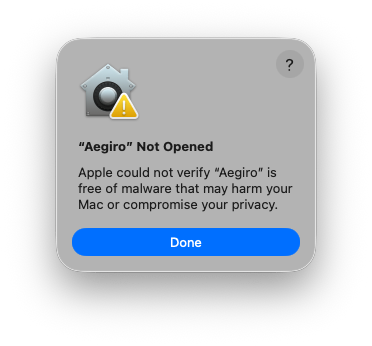
“Aegiro” Not Opened warning
First warning shown when macOS blocks the app on initial launch.
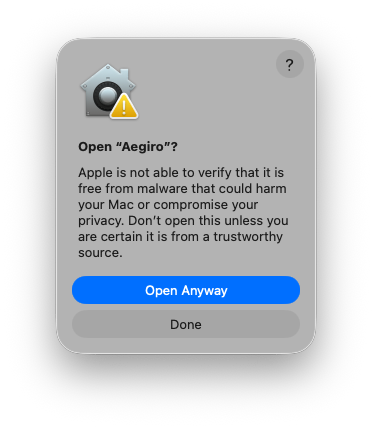
Final confirmation dialog
After clicking Open Anyway in settings, confirm Open Anyway one more time.
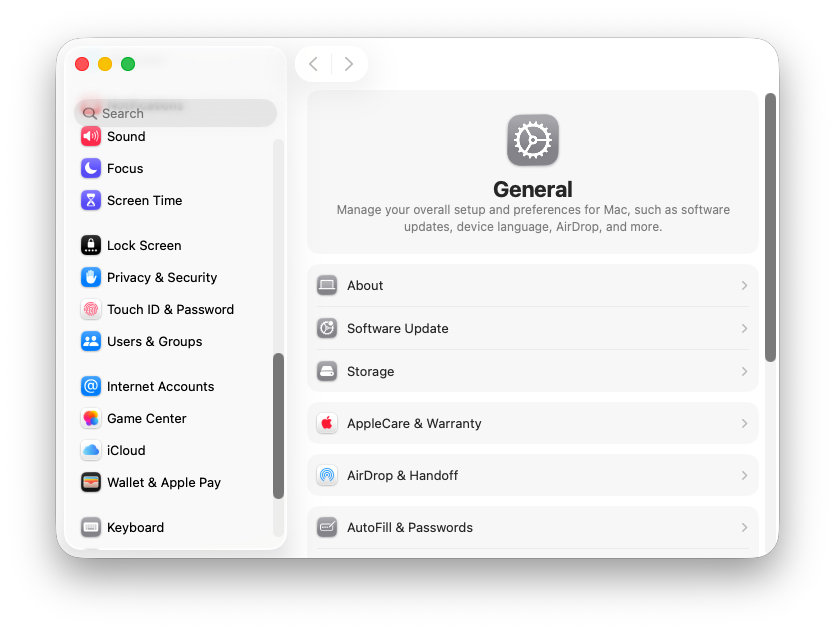
Open Privacy & Security from settings
From System Settings, navigate to Privacy & Security before checking the Security section.
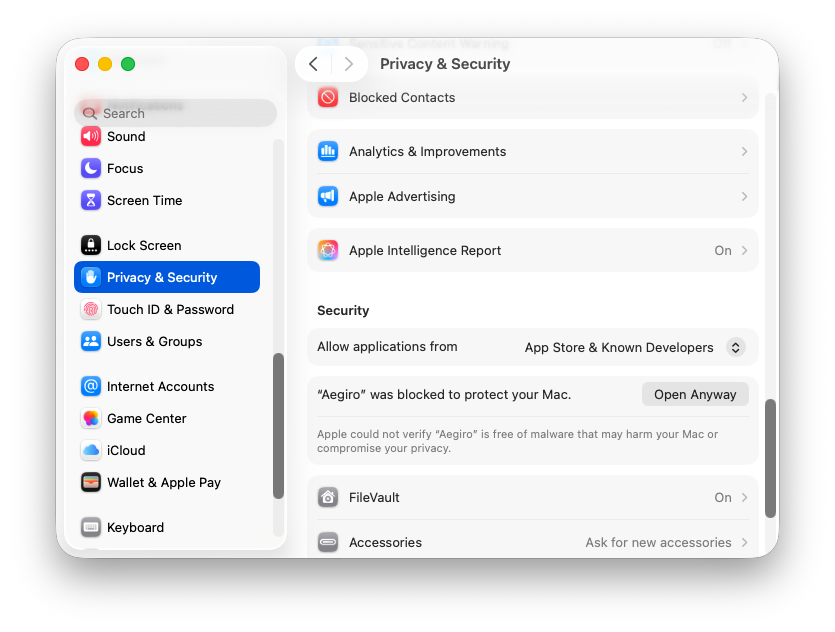
Security section with Open Anyway
In Security, press Open Anyway on the blocked Aegiro row.
Quick Checks
If Open Anyway does not appear.
- Make sure you attempted to open Aegiro first.
- Keep the app in Applications and avoid renaming it before first launch.
- If needed, close and reopen System Settings, then return to Privacy & Security.